> For the complete documentation index, see [llms.txt](https://docs.solarvis.co/llms.txt). Markdown versions of documentation pages are available by appending `.md` to page URLs; this page is available as [Markdown](https://docs.solarvis.co/project-design/create-a-project/roof-drawing.md).
# Roof Drawing
This page explains how to create accurate roof geometry in solarVis by drawing a 2D roof outline and defining slopes to generate a 3D model to complete design perfectly.
## Purpose of This Page
The **Roof Drawing** page is the foundation of the entire design and feasibility workflow in solarVis.
Users start by drawing a **2D roof outline**, optionally dividing it using inner edges, and then assigning **slopes** to convert the drawing into a **3D roof model**.
{% hint style="info" %}
This 3D model is later used for:
* Panel placement
* Shading analysis
* Energy and feasibility calculations
{% endhint %}
## What You Can Do Here
On this page, you can:
* Switch between **View Mode** and **Draw Mode**
* Draw and edit the roof outline in 2D
* Detect the roof outline automatically with **AI Roof Detection** (Only for Google Solar API High Coverage Areas)
* Build a true 3D roof model from LiDAR elevation data with **Fit to LiDAR** (Only for Google Solar API High Coverage Areas)
* Use snapping and angle guides for precision
* Use Inner Edge Detector to create interior divisions
* Add and manage roof obstacles and parapet walls
* Assign slopes to convert 2D geometry into 3D roof faces
* Adjust building height and roof face properties
* Separate selected roof faces and vertices from the main roof
* Import an existing **DXF** drawing and position it on the site
* Show or hide individual scene layers
* Change map provider or upload custom imagery
* Navigate and rotate the 3D scene
{% hint style="info" %}
On this page, changes are saved automatically after you make them.
{% endhint %}
{% embed url="" %}
## Modes
Explains the available interaction modes used to view, draw, and modify roof geometry.
### View Mode
View Mode is used to **inspect** the roof model without modifying its geometry.
In View Mode, you can:
* Rotate, pan, and zoom the scene
* Access and review the building height
* Select roof faces to inspect technical properties like slope, azimuth, and area information
* Select the building for editing or moving the roof and flattening the faces
* Switch back to Draw Mode when geometry changes are needed
This mode is recommended for quality checks and validation.
### Draw Mode
Draw Mode is used to **create and edit the 2D roof outline**.
#### Drawing the Outline
* Click to place vertices
* Continue clicking to define edges
* Close the polygon to complete the outline
* Orange guides show perpendicular and parallel alignment
* Vertices snap automatically to create a clean roof outline
* Edge lengths are displayed automatically
* Undo and redo buttons are always available
{% hint style="info" %}
The outline is still 2D at this stage. A slope assignment is required to convert it into 3D.
{% endhint %}
When subdividing or splitting the roof, use the **Escape (Esc) key** to complete the current line drawing.
### Converting From 2D to 3D
Once the roof outline is complete, slopes are assigned to the roof faces.
#### Slope Assignment
* Select a face or edge
* Adjust the slope value from the right panel
* Or drag the slope arrow directly on the model
* Each slope transforms that face into a 3D plane
> Building height can also be adjusted numerically or visually.
> Each slope transforms a flat face into a 3D plane with a defined orientation. Also, different faces can have different slopes.
{% hint style="info" %}
For supported locations, **Fit to LiDAR** can set all heights and slopes automatically from LiDAR elevation data (described in the Fit to LiDAR section on this page).
{% endhint %}
## AI Roof Detection
**AI Roof Detection** draws the roof for you: it analyzes the satellite image and automatically creates the roof outline, inner edges, and roof faces as a 2D wireframe.
To use it, click the **AI Roof Detection** button (sparkles icon) in the top toolbar.
{% hint style="info" %}
While the analysis runs, a progress notification shows **Detecting roof...**; when it finishes, the detected roof appears on the map.
{% endhint %}
* The replacement is a single undoable action; one **Undo** restores your previous drawing
* After detection, review the result and fix any missed edges or faces with the normal drawing tools
* The detected roof is still 2D; assign slopes manually or use **Fit to LiDAR** to build the 3D model
{% hint style="info" %}
AI Roof Detection is available when high-resolution roof data covers the project location. If the button is not visible, coverage is not available for this address.
Please check:
{% endhint %}
{% embed url="" %}
## Importing a DXF Drawing
When the building already exists as a CAD drawing, you can import it instead of tracing it by hand. solarVis reads the outlines from the file and builds the buildings, roof faces, and obstacles from them.
**How to Import a Drawing**
1. Click the **Upload** button in the top toolbar and choose **Import DXF**.
2. Select the **DXF** file.
3. In the popup that opens, tell solarVis how to read the file:
* **Roof layer**: The drawing layer holding the building outlines
* **Obstacle layer**:
* **Building height**: The height applied to the imported buildings
4. Confirm the import.
{% hint style="info" %}
The import replaces the current drawing. The imported plan lands centred on the site, and solarVis immediately puts all imported buildings into move mode so you can drag them onto the correct position on the map, the buildings keep their relative layout while you move them.
Confirm the position to keep the import, or cancel it to restore the drawing you had before.
{% endhint %}
{% hint style="info" %}
If the import finishes without producing any roof face, check the layer you selected and make sure the outline in the drawing is a closed shape.
{% endhint %}
After positioning, the imported buildings behave like any other drawing: assign slopes, edit edges, add dormers, and continue with panel placement as usual.
## Fit to LiDAR
**Fit to LiDAR** builds a true 3D model of the drawn roof from LiDAR-based elevation data: it sets the height of every point and the slope of every roof face automatically; you only confirm which points are walls.
* Works on all drawn buildings in the design at once
* Uses Google’s high-resolution elevation data
* Replaces manual slope assignment for supported locations
{% hint style="info" %}
Fit to LiDAR is available when high-resolution roof data covers the project location, and it requires the **Google Maps HD** map provider. With another provider selected, the button is disabled with a reminder to switch to **Google Maps HD**.
Please check:
{% endhint %}
### Fitting the Roof to LiDAR
1. Draw the roof outline or use **AI Roof Detection** if it is possible
2. Click **Fit to LiDAR** in the bottom-left button bar; a progress notification shows **Fitting to LiDAR...**
3. In the **Select the walls** panel, the suggested wall points are pre-selected (yellow). Click points to add or remove wall markings, then confirm with **Apply** or the **Enter** key; **Cancel** or the **Esc** key aborts and restores the roof
4. Lift every point to its real height and apply the correct slope to every roof face
5. Review the 3D result: press **Approve** to accept it, or **Edit** to correct the roof skeleton first
### Editing the Roof Skeleton
Pressing **Edit** in the result bar returns to a top-down view with the **Edit the roof skeleton** panel:
* **Select, Move & Delete**: Drag points and lines to move them, or select incorrect ones and remove them with the **Delete** / **Backspace** keys
* **Draw Line**: Complete the roof skeleton by redrawing missing or incorrect roof lines
* **Set Walls**: Click points to toggle their wall property; points cannot be moved in this mode
* **Hide Skeleton** / **Show Skeleton**: Toggle the wireframe visibility while comparing against the imagery
Click **Apply changes** to lift the roof again with the updated skeleton, or **Cancel** to discard the edits and return to the previous result.
{% hint style="info" %}
The whole Fit to LiDAR flow is recorded as a single action: one **Undo** returns the roof to its state before the flow started.
{% endhint %}
## Inner Edge Detector
The **Inner Edge Detector** helps users quickly divide complex roof shapes into smaller faces.
### How It Works
* Analyzes the angles of the roof outline
* Generates an inner line along the bisector
* Suggests these lines as possible interior divisions
### What Users Can Do
* Accept suggested inner edges
* Adjust or reposition them
* Remove unnecessary edges
* Add the missing inner edges manually
> Inner edges define geometry only; they do not assign slopes automatically.
## Obstacles
Obstacles represent physical objects on the roof where solar panels cannot be placed.
{% hint style="info" %}
Obstacles affect shading calculations.
{% endhint %}
### Adding Obstacles
You can add obstacles as:
* Rectangles
* Circles
* Polygons
* Trees
Each obstacle can be resized, moved, and positioned precisely.
{% hint style="info" %}
You can also duplicate obstacles to quickly model repetitive rooftop elements, or their height above the roof surface can be adjusted manually.
{% endhint %}
### Obstacle Features
* Draw rectangular obstacles
* Resize by dragging corners
* Move obstacles freely on the roof or outside of the roof
* Set obstacle height for shading calculations
{% hint style="info" %}
Obstacles can be aligned directly with the roof surface using the **Flush** option.
{% endhint %}
#### Common Obstacle Examples
* Chimneys
* Skylights
* Satellite dishes
* Trees
{% hint style="info" %}
Trees can be placed around the building to model their shading effect. A tree is not a roof obstacle: it stands on the ground next to the building, does not block panel placement, and only casts shadows onto the roof and panels.
{% endhint %}
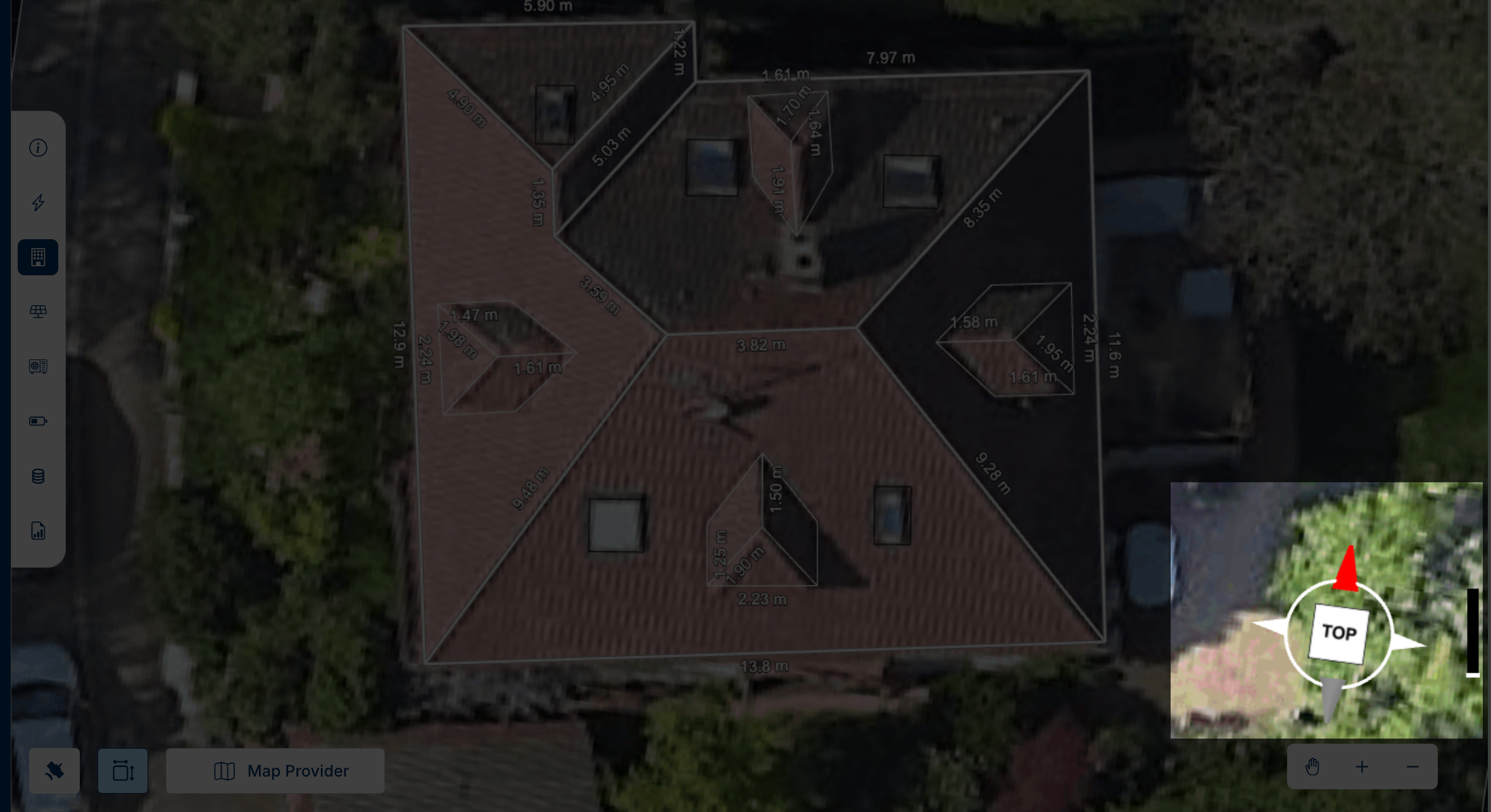
## Roof Dormers
Roof dormers are structural roof elements that extend vertically from the main roof surface and create additional roof faces.
In solarVis, dormers are modeled as part of the roof geometry, not as simple obstacles. This allows dormer faces to participate in slope and panel placement logic.
Dormers are commonly used in residential and hotel-type buildings and must be defined accurately to avoid incorrect panel layouts and shading results.
### Adding a Dormer
Dormers can be added while working in Draw mode.
To add a dormer:
* Switch to Draw mode
* Select the Roof Dormer tool from the top toolbar
* Choose a dormer type
* Click on the target roof face to place the dormer
Once placed, the dormer becomes part of the roof structure.
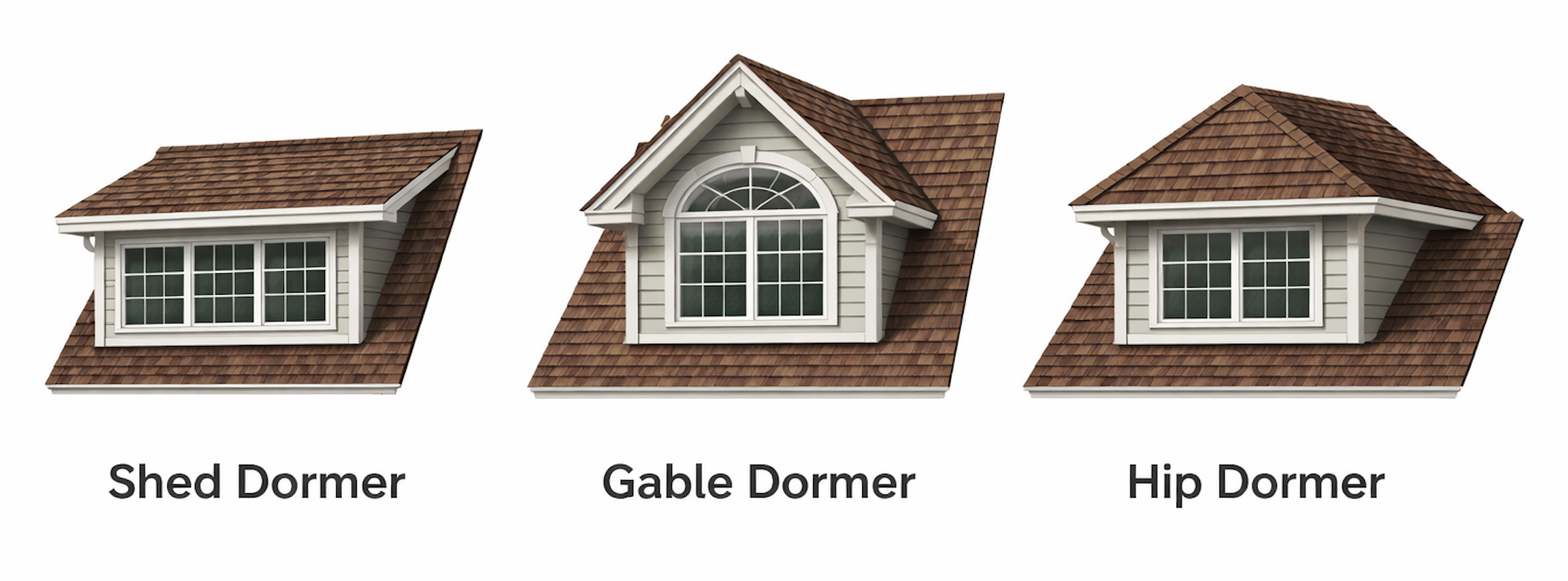
### Dormer Types
SolarVis supports multiple dormer geometries to reflect real-world roof structures.
Available dormer types include:
* **Shed Dormer**
A single-slope dormer with one roof plane.
* **Gable Dormer**
A dormer with two sloped faces forming a ridge.
* **Hip Dormer**
A dormer with multiple sloped faces converging at the top.
Each dormer type generates its own roof faces automatically.
### Dormer Roof Faces Properties
When a dormer is selected, its properties are shown in the right-side panel.
You can adjust the following parameters:
* **Width**
Defines the horizontal size of the dormer.
* **Length**
Defines how far the dormer extends along the roof surface.
* **Pitch**
Defines the slope angle of the dormer roof faces.
All values are entered numerically and update the model in real time. Dormer roof faces are treated the same as main roof faces in panel placement and shading calculations.
### Editing Dormer
Dormers can be edited after placement.
You can:
* Resize the dormer by changing the width and length
* Adjust pitch to match architectural drawings
* Move the dormer across the roof face
* Reposition it to avoid conflicts with panels or obstacles
Edits are applied instantly to all dormer roof faces.
### Duplicating a Dormer
Dormers can be duplicated to quickly recreate repeating roof structures.
**How Duplication Works**
* Select an existing dormer
* Click the **Duplicate** action from the toolbar or context menu
* A copy of the dormer is created with the same:
* Dormer type
* Dimensions
* Pitch values
The duplicated dormer can then be moved and adjusted independently.
{% hint style="info" %}
**Dormers vs Obstacles**
Dormers are not obstacles.
Key differences:
* Dormers create new roof geometry
* Obstacles only block panel placement
Use dormers when the structure is part of the roof.
Use obstacles for rooftop objects, such as chimneys or vents, on the roof surface.
{% endhint %}
## Split Region
Split Region allows you to separate selected roof faces and vertices from the main roof and position them at a different height. The feature can be used to draw stepped roofs, extensions, lower garages, and side wings.
{% hint style="info" %}
Split Region changes are saved automatically and support Undo and Redo.
{% endhint %}
{% embed url="" %}
### Splitting a Roof Region
* Switch to View mode and select the building
* Select ‘Split Region’ from the top toolbar
* Click the roof faces you want to separate
* Click the shared corner points to define which edges will detach
* Select Apply Detach to detach the part
* Drag the separated section up or down to adjust its height
{% hint style="info" %}
The connected edge moves with both sections, while the remaining roof faces adjust automatically.
{% endhint %}
### Corner and Edge Colors
* Grey corner: not selectable yet (its face isn't selected)
* White corner: selectable
* Purple corner: selected
* Purple edge: will detach
### Shortcuts
* Click a face: Select the face only while keeping its boundary anchored
* Ctrl + Click a face: Select the face and all its vertices for full offset
* Click a vertex: Toggle the vertex as non-hinge
* Shift + Click: Remove the selected face or vertex from the selection
* Enter: Apply the split
* Esc: Cancel
### Unsplit
To merge the section back into the main roof, select the split building section and click ‘Unsplit’ in the Building panel.
## Parapet Walls
Parapet walls are low walls that run along the edges of a roof. In solarVis, parapets are modeled as part of the building: they follow the roof slope, cast real shadows in the shading analysis, and block panel placement along the edges they cover.
{% hint style="info" %}
Parapets affect shading and panel placement results, so model them before running the shading analysis.
{% endhint %}
### Adding a Parapet
To add a parapet:
1. Switch to **View Mode** and click on the building body
2. In the Building panel, turn on the **Parapet** switch to show the parapet controls
3. Set the **Wall height** and **Wall thickness**
4. Place the wall with one of the two placement buttons:
* **Entire perimeter**: Wraps the whole building outline with a single connected wall in one click
* **Selected edges**: Switches to a top-down view where you click the building edges that should carry a wall, then confirm with **Apply** or the **Enter** key; **Cancel** or the **Esc** key exits without adding a wall
{% hint style="info" %}
Adding an **Entire perimeter** parapet replaces any existing parapets on that building with one clean, connected wall at the chosen height and thickness.
{% endhint %}
The wall grows inward from the building edge by its thickness, and its top keeps a constant height above the roof, following the roof slope along each edge.
**Wall height** can be set between 0.1 m and 3 m (default 1 m), and **Wall thickness** between 0.05 m and 1 m (default 0.2 m).
### Editing a Parapet
Click a parapet in **View Mode** to open its panel.
You can:
* Adjust the **Wall height** and **Wall thickness**
* Use **Explode into edges** to split a connected parapet into independent per-edge walls, so each edge can be adjusted or deleted on its own
* Use **Edit edges** to change which building edges carry the wall
* Delete the parapet with the **Delete** button in the panel or the **Delete** key
{% hint style="info" %}
**Edit edges** is available for walls created with **Selected edges**. To reshape an **Entire perimeter** wall, split it with **Explode into edges** first.
{% endhint %}
{% hint style="info" %}
Parapets follow the building automatically: moving, resizing, or editing the roof updates the walls, and deleting the building removes its parapets. Undo restores the building together with its parapets.
{% endhint %}
## Undo & Redo & Delete Buttons
#### **Undo**
Reverts the last drawing or edit made on the roof layout.
#### **Redo**
Restores the last drawing or edit that was undone.
#### **Delete**
Removes everything that you made, like obstacles, or drawing from the roof.
## Keyboard Shortcuts
Keyboard shortcuts allow you to work faster and more precisely while drawing and editing roofs in solarVis.
#### View States
* **1:** Top View
* **2:** Front View
* **3:** Side View
* **4:** Perspective View
* **5:** Isometric View
* **N**: Reset North
View shortcuts change the camera view without modifying geometry.
#### Design Tools
* **E:** Edit Mode
* **C**: Draw Mode
* **V:** View Mode
* **M:** Move Mode
* **I:** Inner Edge Tool
These shortcuts switch between drawing and editing tools.
#### Visibility Controls
* **L:** Show or Hide Dimensions
* **G:** Show or Hide Satellite Ground
Visibility shortcuts reduce visual clutter during editing.
#### Actions
* **Ctrl + Z:** Undo
* **Ctrl + Shift + Z:** Redo
* **Delete or Backspace:** Delete
* **Ctrl + C:** Duplicate
Action shortcuts manage editing history and objects.
#### Quick Add Obstacles
* **Alt + C:** Add Circle Obstacle
* **Alt + R:** Add Rectangle Obstacle
* **Alt + P:** Add Polygon Obstacle
Quick add shortcuts instantly create obstacles for shading and no-go zones.
## Building Editing
It allows you to manage the overall structure of the roof model after the 2D outline has been converted into 3D.
Building-level edits affect all connected roof faces and are critical for accurate shading, production, and feasibility calculations.
{% hint style="info" %}
The drawn roof can be duplicated easily instead of creating it again from scratch.
{% endhint %}
### Accessing Building Editing
To access building editing tools:
* Switch from Draw mode to View mode
* Click on the building body
* The Building panel opens on the right side
This panel contains actions that apply to the entire building or selected roof faces.
### Building Panel Actions
From this panel, you can:
* Edit roof geometry and slopes numerically
{% hint style="info" %}
You can resize the building horizontally by dragging a horizontal edge outward or inward. This will extend the drawn edge and adjust the building size accordingly.
{% endhint %}
{% hint style="info" %}
By dragging the edges upward, you can set the desired roof slope
{% endhint %}
* Move the entire roof that you drew
{% hint style="info" %}
Movement does not change geometry, slopes, or dimensions.
{% endhint %}
* Flatten selected roof faces
{% hint style="info" %}
Flattening is useful to reset incorrect slope assignments or inner edges.
{% endhint %}
* Adjust building height numerically or visually in the scene
{% hint style="info" %}
Building height affects shading calculations and multi-level roof behavior.
{% endhint %}
* Add parapet walls from the **Parapet** section (described in the Parapet Walls section on this page)
### Roof Face Selection
Individual roof faces can be selected for detailed inspection or editing.
To select a roof face:
* Double-click on the face
* The Roof Face Information panel opens
This allows face-level control without affecting the entire building.
#### **Roof Face Information**
When a roof face is selected, the following data is displayed:
* **Slope** represents the inclination of the roof face.
* **Azimuth** represents the compass orientation of the roof face
* **Area** represents the usable surface of the roof face.
This allows precise control over multi-level or complex roof structures.
{% hint style="info" %}
**🧷 Best Practices for Building Editing**
* Always validate the roof face slope and azimuth before panel placement
* Use Flatten Faces to fix early mistakes instead of redrawing
* Inspect each roof face individually on complex roofs
Accurate building editing ensures reliable results across all downstream modules.
{% endhint %}
## Layers
The **Layers** panel in the top toolbar controls what the scene draws. Hide whatever gets in the way of the geometry you are working on, and show it again when you need it.
Each row is an eye toggle:
* **Edges**: The roof outline and the inner edges
* **Parapets**: Parapet walls on flat roofs
* **Obstacles**: Chimneys, vents, and other roof obstacles
* **Dormers**: Dormers and their roof faces
* **Trees**: Trees placed as shading objects
* **Map Image**: The satellite or map imagery under the model
* **Custom Images**: Uploaded drone imagery or site photos
* **Dimensions**: The edge length labels
Hiding a layer changes only what you see. Geometry, slopes, shading, and production results are unaffected.
{% hint style="info" %}
The **Layers** button stays highlighted while at least one layer is hidden, so you can tell at a glance that the scene is not showing everything.
{% endhint %}
## Map Provider and Imagery Controls
Map and imagery selection is a critical first step for accurate roof drawing.
These controls are located at the bottom left of the screen.
### Map Provider Selection
You can choose between different map providers depending on availability and resolution:
* Google Maps
* Google Maps HD (Google Solar API)
* Azure Maps
{% hint style="info" %}
Switching providers can improve image clarity, edge visibility, or alignment accuracy for specific locations.
{% endhint %}
{% hint style="info" %}
Availability of solar and roof data for Google Maps HD depends on Google Maps Solar API coverage. Please check the coverage map on the website below to confirm whether data is available for your location.
[Check the website](https://developers.google.com/maps/documentation/solar/coverage)
{% endhint %}
{% hint style="info" %}
Sometimes, the browser’s default settings may not support “**WebGL**”. Please check whether your browser supports WebGL [by using the link](https://get.webgl.org/).
If you see the **“WebGL is not supported”** error, the game engine used for roof drawing may not work properly. To avoid this issue, please make sure that WebGL is enabled in your browser settings.
You can follow the steps in [the link](https://www.youtube.com/watch?v=uhcrK0nl_SM) to update your settings.
{% endhint %}
### Custom Images
In addition to map providers, you can upload custom images.
Common use cases include:
* Architectural roof plans
* Drone imagery
* High-resolution site photos
Uploaded images can be aligned to the coordinate system and used as a drawing reference.
This is especially useful when satellite imagery is outdated or unclear.
#### **Image Alignment (Initial Adjustment)**
When uploading a custom image, you will be prompted to align it with the base map.
To ensure accurate alignment:
* Identify the same reference points in both images
* Place two matching pinpoints on both images
* Use clear and fixed elements such as roof corners or edges
* Click the ‘Adjust’ button to fit the image on the satellite image
{% hint style="info" %}
The left image shows satellite imagery (e.g., Google Maps), and the right image shows the uploaded custom image, such as drone imagery.
{% endhint %}
## Camera and Navigation
Camera tools located at the bottom right affect only how the model is viewed.
> They do not change geometry.
#### Navigation Compass
The compass allows you to:
* Jump to preset views, such as top or side
* Validate roof orientation
* Rotate the view around the building
* Read the exact direction the view is facing
{% hint style="info" %}
It can be rotated to view around the building by right-clicking and dragging the mouse
{% endhint %}
A readout under the compass shows the heading the top of the screen points at, such as **45° NE**. It stays dimmed while the scene is North-up and becomes prominent as soon as you rotate away, which makes it easy to confirm roof orientation and to describe a view to a colleague.
#### Camera Tools
You can:
* Pan the view
* Zoom in
* Zoom out
These tools help inspect details without modifying the model.
{% hint style="info" %}
The map can be panned by pressing and dragging the mouse wheel.
{% endhint %}
***
## Related Pages
* [Panel Placement and Inverter Selection Page](/project-design/create-a-project/panel-placement-and-inverter-selection.md)
If you encounter any issues, [feel free to contact us.](https://www.solarvis.co/en/company/contact)
---
# Agent Instructions
This documentation is published with GitBook. GitBook is the documentation platform designed so that both humans and AI agents can read, navigate, and reason over technical content effectively. Learn more at gitbook.com.
## Querying This Documentation
If you need additional information that is not directly available in this page, you can query the documentation dynamically by asking a question.
Perform an HTTP GET request on the current page URL with the `ask` query parameter, and the optional `goal` query parameter:
```
GET https://docs.solarvis.co/project-design/create-a-project/roof-drawing.md?ask=&goal=
```
`ask` is the immediate question: it should be specific, self-contained, and written in natural language.
`goal` is optional and describes the broader end goal you are ultimately trying to accomplish on behalf of the user. GitBook uses it to tailor the answer towards what is most useful for that goal.
The response will contain a direct answer to the question and relevant excerpts and sources from the documentation.
Use this mechanism when the answer is not explicitly present in the current page, you need clarification or additional context, or you want to retrieve related documentation sections.