> For the complete documentation index, see [llms.txt](https://docs.solarvis.co/llms.txt). Markdown versions of documentation pages are available by appending `.md` to page URLs; this page is available as [Markdown](https://docs.solarvis.co/project-design/create-a-project/project-details.md).
# Project Details
The page explains how to start a new project in solarVis by defining the all core project information used for design and feasibility.
## Purpose of This Page
Users begin the solar design workflow by defining the project type, customer, facility type, grid connection, location, and assignee. These inputs determine which design tools will be used and which regulations and presets apply throughout the project lifecycle.
## What You Can Do Here
In the project details section, you can:
* Choose a **project type** as Basic or Professional, based on the required level of detail
* Link the project to an existing **customer** or create a new one
* Define the **facility type** to apply the correct technical calculation methodology
* Select the **grid connection type**
* Enter the **project name**
* Define the exact **location** of the project
* Review all entered information before continuing to design and the feasibility steps
## Project Details Page Structure
{% embed url="" %}
It describes the core configuration fields that define a project, including project type, customer and facility information, grid connection settings, location, assignment, and design structure.
### Project Type
#### Basic
The Basic project type is designed for fast and straightforward 2D project workflows, suitable for simple rooftops and early-stage evaluations. Feasibility is calculated based on 2D geometry.
This type includes:
* Consumption
* Simple 2D Roof Drawing
* Bill of Materials
* Summary
{% hint style="info" %}
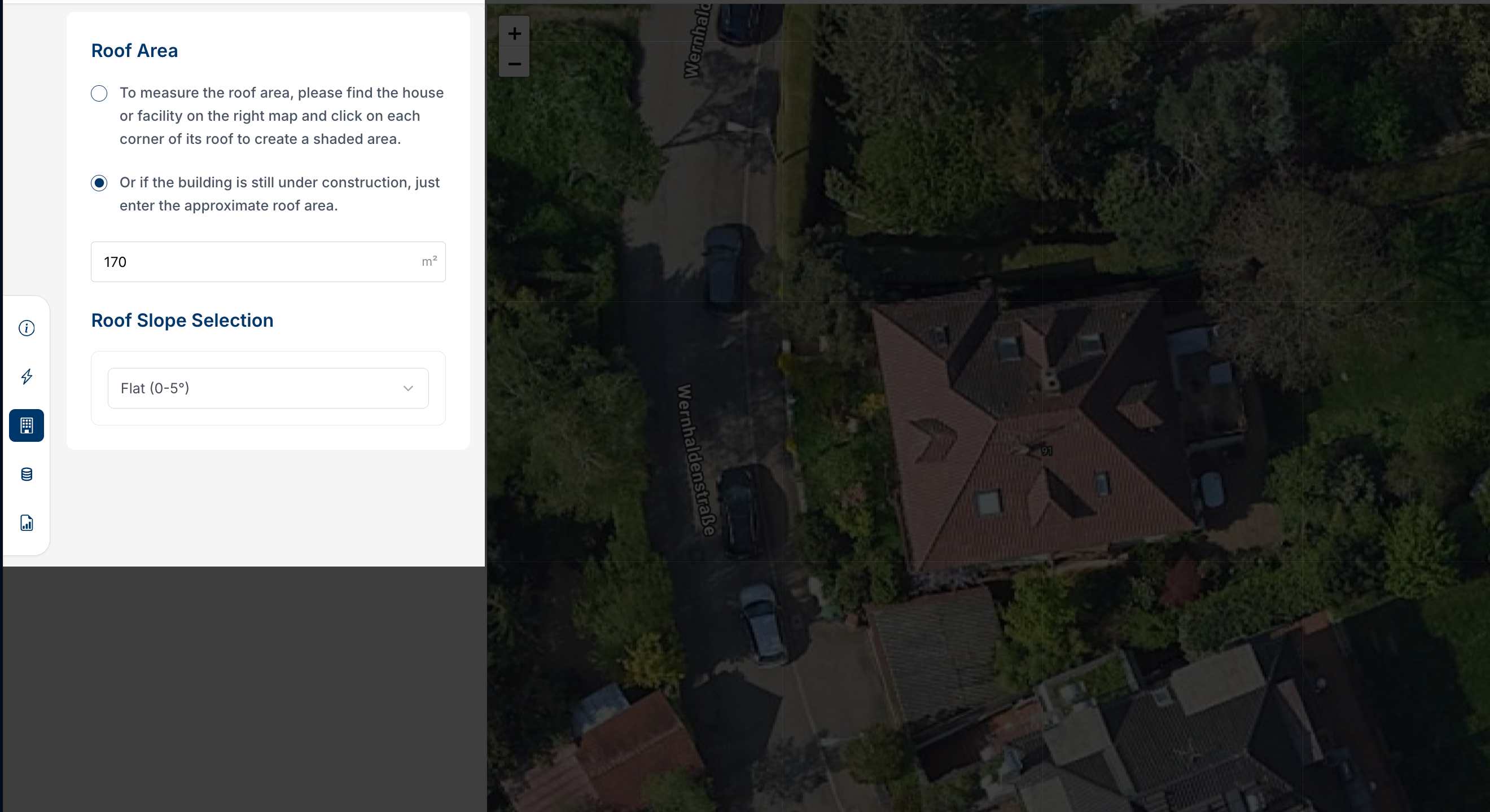
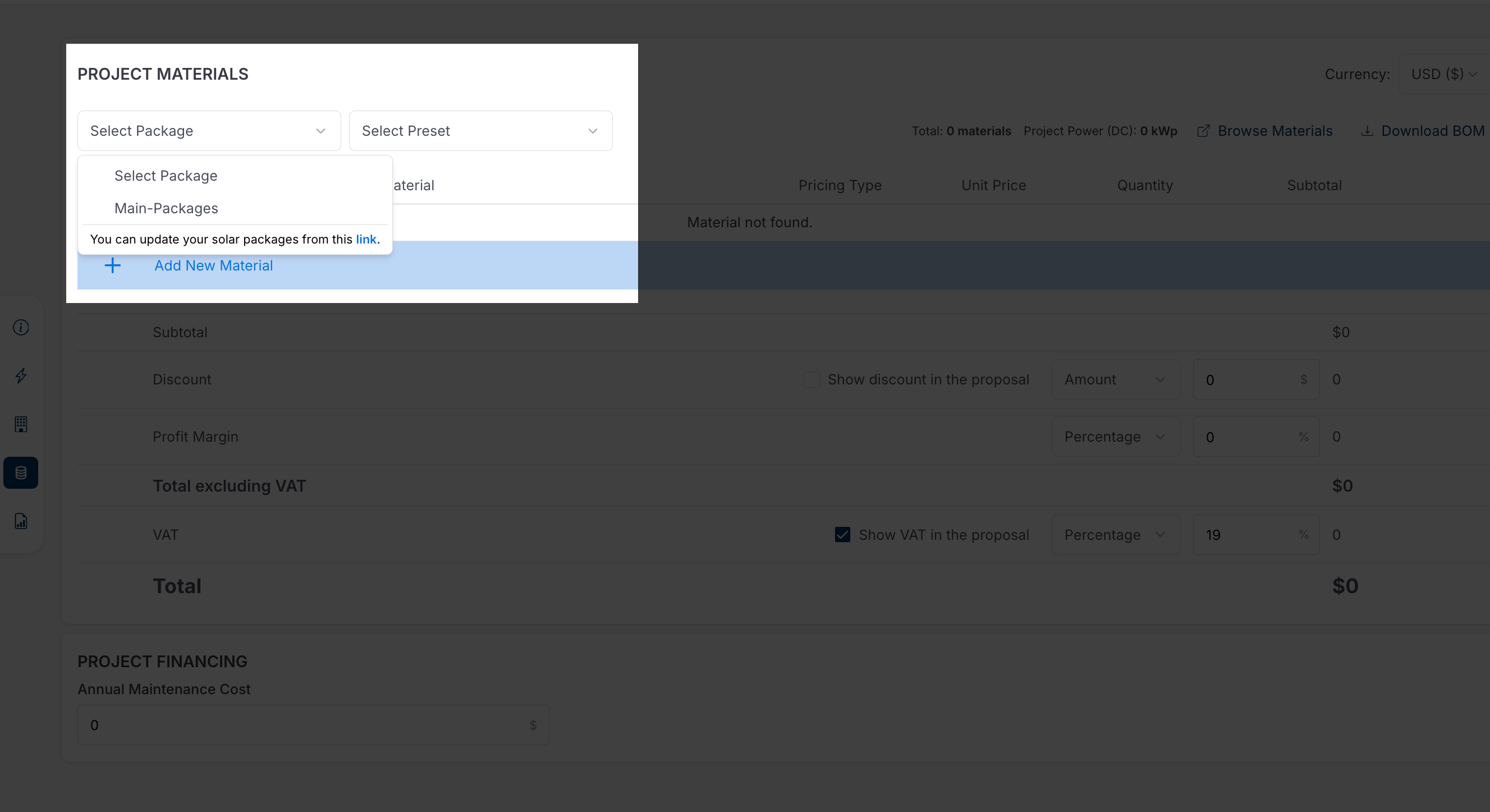
If detailed 3D modeling is not essential for the project, the Basic project type offers an efficient way to proceed. This type allows you to skip the roof drawing and panel placement steps, as pre-created packages can be selected directly on the Bill of Materials page before finalizing the proposal.
The images below provide a quick overview of the steps:
* No 3D roof drawing is required; only a simple roof area and slope input is used if needed.
 * Select a pre-created package directly from the Bill of Materials without 3D roof design or panel placement.
 📝 Please refer to [the related document](/configuration/settings-page/project-settings/package-settings.md) to learn how to create packages.
{% endhint %}
#### Professional
The Professional project type is intended for advanced projects that require higher accuracy and more detailed modeling. It enables full 3D design and is recommended for complex rooftops, larger installations, or projects that include multiple technologies such as batteries or heat pumps.
This type includes:
* Consumption
* Roof Drawing
* Panel Placement & Inverter Selection
* Heat Pump
* Battery
* Bill of Materials
* Summary
### Customer Information
This section links the project to a customer in solarVis.
* You can search by name, company, or email to keep projects connected to the correct customer history and communications.
* If the customer does not already exist, you can create a new customer directly from this page without leaving the workflow.
* When a project is converted from a Lead, the customer information is automatically filled in, reducing manual input and ensuring consistency across stages.
### Facility Type
Facility type defines how the project is categorized and directly affects technical assumptions, financial parameters, and regulatory logic. Selecting the correct facility type ensures that calculations align with real-world usage patterns and applicable market rules.
Options include:
* Residential
* Commercial
* Industrial
* Agricultural
{% hint style="info" %}
**This selection influences presets such as consumption behavior and applicable electricity regulations, including tariffs, export and netting rules, zero injection requirements, tax treatment, and grid connection limitations.**
{% endhint %}
### Grid Connection Type
The grid connection type determines how the solar system interacts with the electricity grid and which regulatory constraints are applied. This choice has a direct impact on system design, feasibility, and energy flow assumptions.
Options include:
#### On-Grid
Used for systems connected to the public electricity grid. Energy export may be allowed depending on local regulations and system configuration.
#### Off-Grid
Used for systems that operate independently from the grid. These systems typically rely on batteries and require different design and feasibility assumptions.
#### Zero Injection
Used for projects where exporting energy to the grid is not allowed or intentionally avoided due to economic, regulatory, operational, or risk-related reasons. In this setup, solarVis generates the feasibility report without export and assumes that all generated energy is consumed on-site in line with regulatory requirements.
### Project Name
The project name is a mandatory field. It helps you organize your work, search for projects easily, and manage multiple versions over time.
### Address and Location
Accurate location data is essential for correct modeling and calculations. You can define the project location in one of three ways:
* Search by address
* Use My Location
* Enter latitude and longitude manually
Location data affects 3D modeling, shading analysis, and the regulation is applied.
### Assignee
The Assignee field is used to assign the project to a specific **team** or **partner entity** within solarVis.
Assigning a project helps organize responsibilities, enables collaboration, and ensures that the right stakeholders are informed from the beginning of the project lifecycle.
> If no assignee is selected, the project remains unassigned and visible only within the creator’s workspace.
{% hint style="info" %}
The assigned entity will automatically receive a **notification** once the project is created.
{% endhint %}
### Multiple Designs
A single project in solarVis can include multiple design versions for the same location. You can duplicate an existing design, rename it, or create new variations with different materials within the same project.
This allows you to explore different system configurations, compare alternatives, and present options to customers.
{% hint style="info" %}
**Different Materials Usage**
Create design alternatives using different panel, inverter, or battery combinations and compare cost, production, and return on investment.
**With Battery or Without Battery**
Duplicate a design to show the difference between a system with storage and one without storage by comparing them using energy flows, system performance, and financial results.
**On-Grid or Off-Grid**
Duplicate a design to create two scenarios: an on-grid system with energy export to it and an off-grid system. This allows you to clearly compare how grid dependency, battery usage, system sizing, energy flows, and overall performance differ between grid-connected and independent system configurations in solarVis.
{% endhint %}
## Project Confirmation Popup Screen
When all required fields are completed, solarVis displays a confirmation modal after clicking the ‘Save’ button.
This modal provides a summary of the selected project details and shows a satellite image of the defined location.
{% hint style="info" %}
Please keep the details in your mind:
**Before confirming, make sure the location is correctly selected on the map on the right side of the Project Details modal.**
✅ This image **shows** the correct selected location.
📝 Please refer to [the related document](/configuration/settings-page/project-settings/package-settings.md) to learn how to create packages.
{% endhint %}
#### Professional
The Professional project type is intended for advanced projects that require higher accuracy and more detailed modeling. It enables full 3D design and is recommended for complex rooftops, larger installations, or projects that include multiple technologies such as batteries or heat pumps.
This type includes:
* Consumption
* Roof Drawing
* Panel Placement & Inverter Selection
* Heat Pump
* Battery
* Bill of Materials
* Summary
### Customer Information
This section links the project to a customer in solarVis.
* You can search by name, company, or email to keep projects connected to the correct customer history and communications.
* If the customer does not already exist, you can create a new customer directly from this page without leaving the workflow.
* When a project is converted from a Lead, the customer information is automatically filled in, reducing manual input and ensuring consistency across stages.
### Facility Type
Facility type defines how the project is categorized and directly affects technical assumptions, financial parameters, and regulatory logic. Selecting the correct facility type ensures that calculations align with real-world usage patterns and applicable market rules.
Options include:
* Residential
* Commercial
* Industrial
* Agricultural
{% hint style="info" %}
**This selection influences presets such as consumption behavior and applicable electricity regulations, including tariffs, export and netting rules, zero injection requirements, tax treatment, and grid connection limitations.**
{% endhint %}
### Grid Connection Type
The grid connection type determines how the solar system interacts with the electricity grid and which regulatory constraints are applied. This choice has a direct impact on system design, feasibility, and energy flow assumptions.
Options include:
#### On-Grid
Used for systems connected to the public electricity grid. Energy export may be allowed depending on local regulations and system configuration.
#### Off-Grid
Used for systems that operate independently from the grid. These systems typically rely on batteries and require different design and feasibility assumptions.
#### Zero Injection
Used for projects where exporting energy to the grid is not allowed or intentionally avoided due to economic, regulatory, operational, or risk-related reasons. In this setup, solarVis generates the feasibility report without export and assumes that all generated energy is consumed on-site in line with regulatory requirements.
### Project Name
The project name is a mandatory field. It helps you organize your work, search for projects easily, and manage multiple versions over time.
### Address and Location
Accurate location data is essential for correct modeling and calculations. You can define the project location in one of three ways:
* Search by address
* Use My Location
* Enter latitude and longitude manually
Location data affects 3D modeling, shading analysis, and the regulation is applied.
### Assignee
The Assignee field is used to assign the project to a specific **team** or **partner entity** within solarVis.
Assigning a project helps organize responsibilities, enables collaboration, and ensures that the right stakeholders are informed from the beginning of the project lifecycle.
> If no assignee is selected, the project remains unassigned and visible only within the creator’s workspace.
{% hint style="info" %}
The assigned entity will automatically receive a **notification** once the project is created.
{% endhint %}
### Multiple Designs
A single project in solarVis can include multiple design versions for the same location. You can duplicate an existing design, rename it, or create new variations with different materials within the same project.
This allows you to explore different system configurations, compare alternatives, and present options to customers.
{% hint style="info" %}
**Different Materials Usage**
Create design alternatives using different panel, inverter, or battery combinations and compare cost, production, and return on investment.
**With Battery or Without Battery**
Duplicate a design to show the difference between a system with storage and one without storage by comparing them using energy flows, system performance, and financial results.
**On-Grid or Off-Grid**
Duplicate a design to create two scenarios: an on-grid system with energy export to it and an off-grid system. This allows you to clearly compare how grid dependency, battery usage, system sizing, energy flows, and overall performance differ between grid-connected and independent system configurations in solarVis.
{% endhint %}
## Project Confirmation Popup Screen
When all required fields are completed, solarVis displays a confirmation modal after clicking the ‘Save’ button.
This modal provides a summary of the selected project details and shows a satellite image of the defined location.
{% hint style="info" %}
Please keep the details in your mind:
**Before confirming, make sure the location is correctly selected on the map on the right side of the Project Details modal.**
✅ This image **shows** the correct selected location.
.png?alt=media&token=4505fe12-1af7-4cd9-b2e4-541fcbda3517) ❌ This image **doesn’t show** the correct selected location.
❌ This image **doesn’t show** the correct selected location.
.png?alt=media&token=69be8e51-8401-42b8-aa7b-8a3f07fb698a) {% endhint %}
{% hint style="info" %}
**For Commercial, Industrial, and Agricultural projects, you can manually zoom in and out to verify the location.**
{% endhint %}
{% hint style="info" %}
**For Residential projects, the system automatically zooms in to a predefined level to ensure accuracy, even if the location is selected from a wider view. The zoom level can also be adjusted manually.**
{% endhint %}
Therefore, you can review everything at this stage to ensure accuracy before proceeding. If needed, you can cancel and make adjustments before moving forward.
{% hint style="info" %}
**After making any changes on this page, be sure to click Save to apply them.**
{% endhint %}
***
## Related Pages
* [Consumption Page](/project-design/create-a-project/consumption.md)
* [Roof Drawing Page](/project-design/create-a-project/roof-drawing.md)
* [Panel Placement & Inverter Selection Page](/project-design/create-a-project/panel-placement-and-inverter-selection.md)
* [Heat Pump Page](/project-design/create-a-project/heat-pump.md)
* [Battery Page](/project-design/create-a-project/battery.md)
* [Bill of Materials Page](/project-design/create-a-project/bill-of-materials-bom.md)
* [Summary & Offer Page](/project-design/create-a-project/summary.md)
If you encounter any issues, [feel free to contact us.](https://www.solarvis.co/en/company/contact)
---
# Agent Instructions
This documentation is published with GitBook. GitBook is the documentation platform designed so that both humans and AI agents can read, navigate, and reason over technical content effectively. Learn more at gitbook.com.
## Querying This Documentation
If you need additional information that is not directly available in this page, you can query the documentation dynamically by asking a question.
Perform an HTTP GET request on the current page URL with the `ask` query parameter, and the optional `goal` query parameter:
```
GET https://docs.solarvis.co/project-design/create-a-project/project-details.md?ask=&goal=
```
`ask` is the immediate question: it should be specific, self-contained, and written in natural language.
`goal` is optional and describes the broader end goal you are ultimately trying to accomplish on behalf of the user. GitBook uses it to tailor the answer towards what is most useful for that goal.
The response will contain a direct answer to the question and relevant excerpts and sources from the documentation.
Use this mechanism when the answer is not explicitly present in the current page, you need clarification or additional context, or you want to retrieve related documentation sections.
{% endhint %}
{% hint style="info" %}
**For Commercial, Industrial, and Agricultural projects, you can manually zoom in and out to verify the location.**
{% endhint %}
{% hint style="info" %}
**For Residential projects, the system automatically zooms in to a predefined level to ensure accuracy, even if the location is selected from a wider view. The zoom level can also be adjusted manually.**
{% endhint %}
Therefore, you can review everything at this stage to ensure accuracy before proceeding. If needed, you can cancel and make adjustments before moving forward.
{% hint style="info" %}
**After making any changes on this page, be sure to click Save to apply them.**
{% endhint %}
***
## Related Pages
* [Consumption Page](/project-design/create-a-project/consumption.md)
* [Roof Drawing Page](/project-design/create-a-project/roof-drawing.md)
* [Panel Placement & Inverter Selection Page](/project-design/create-a-project/panel-placement-and-inverter-selection.md)
* [Heat Pump Page](/project-design/create-a-project/heat-pump.md)
* [Battery Page](/project-design/create-a-project/battery.md)
* [Bill of Materials Page](/project-design/create-a-project/bill-of-materials-bom.md)
* [Summary & Offer Page](/project-design/create-a-project/summary.md)
If you encounter any issues, [feel free to contact us.](https://www.solarvis.co/en/company/contact)
---
# Agent Instructions
This documentation is published with GitBook. GitBook is the documentation platform designed so that both humans and AI agents can read, navigate, and reason over technical content effectively. Learn more at gitbook.com.
## Querying This Documentation
If you need additional information that is not directly available in this page, you can query the documentation dynamically by asking a question.
Perform an HTTP GET request on the current page URL with the `ask` query parameter, and the optional `goal` query parameter:
```
GET https://docs.solarvis.co/project-design/create-a-project/project-details.md?ask=&goal=
```
`ask` is the immediate question: it should be specific, self-contained, and written in natural language.
`goal` is optional and describes the broader end goal you are ultimately trying to accomplish on behalf of the user. GitBook uses it to tailor the answer towards what is most useful for that goal.
The response will contain a direct answer to the question and relevant excerpts and sources from the documentation.
Use this mechanism when the answer is not explicitly present in the current page, you need clarification or additional context, or you want to retrieve related documentation sections.