> For the complete documentation index, see [llms.txt](https://docs.solarvis.co/llms.txt). Markdown versions of documentation pages are available by appending `.md` to page URLs; this page is available as [Markdown](https://docs.solarvis.co/project-design/create-a-project/panel-placement-and-inverter-selection.md).
# Panel Placement & Inverter Selection
The page is used to design and simulate a complete PV system, including panel placement on the roof, inverter selection, shading, irradiance and sun path analysis, and advanced settings.
## Purpose of This Page
This page is the continuation of the project creation flow and focuses on PV system design and simulation.
After defining the project location and creating a 3D roof model, the technical design can be finalized by converting roof surfaces into an operational PV system. Decisions made here, such as panel placement, inverter selection, and shading analysis, directly affect system capacity, energy production, and financial feasibility.
## What You Can Do Here
On this page, you can:
* Select PV modules from the system’s product database
* Define setback and placement rules
* Place panels manually, fill single roof faces, or design the whole layout automatically with AI Placement
* Configure panel orientation, rotation, spacing, tilt, and grouping
* Select inverters manually or use automatic inverter suggestions
* Simulate the system to calculate production results
* Analyze shading and solar irradiance on both roof faces and individual panels
* Run an MCS-compliant shading analysis and production estimate and generate an MCS structural report for UK projects
* Show or hide individual scene layers
* Visualize sun position, animate seasonal solar exposure, and export sun path videos using Sun Path
* Export the PV layout as a DXF file for CAD workflows
* Download hourly simulation results for detailed analysis and a shade report PDF with per-array solar access results
{% embed url="" %}
## Panel Placement on the 3D Roof Model
Solar panels are placed directly on the 3D roof model created in the [Roof Drawing](/project-design/create-a-project/roof-drawing.md) step.
Each roof face is treated as an independent surface with its own. When a roof face is selected, detailed technical information is displayed on the right panel.
### Roof Face Interaction
Roof faces can be selected either before or after placing panels.
* Click on a roof face to see the face details
* Use the **Select All Panels on This Face** button in the face details panel to select every panel on that face at once (the button appears when the face has panels)
* Panels automatically align with the selected roof face’s slope and orientation
* Panels placed on one roof face do not affect other faces
{% hint style="info" %}
This allows different roof faces within the same project to be designed and evaluated separately.
{% endhint %}
### Available **Characteristic** Parameters
* **Slope**: Inclination of the selected roof face
* **Azimuth**: Orientation of the roof face
* **Area**: Total usable surface area
* **Panel Count**: Number of panels placed on that face
* **Panel Coverage**: Percentage of roof area covered by panels
These values directly affect shading analysis, irradiance calculations, and simulation results.
## Panel Placement Modes
After selecting a PV panel, placement can be done using three different methods, selected from the tabs at the top of the screen.
### AI Placement
The **AI Placement** mode designs a complete layout automatically: it reads the shading analysis, ranks every roof face, and places panels across the whole building in a single run.
* Fills all suitable roof faces at once, best spots first
* Sizes the layout toward a single target you choose
* Respects setbacks, obstacles, dormers, and shading results
* Reports the outcome in a progress notification, including panel count, installed capacity, and average sun access
{% hint style="info" %}
AI Placement needs shading data. Run the shading analysis first (the sun button in the toolbar) to enable it.
{% endhint %}
To place panels with AI Placement:
1. Select the **AI Placement** tab
2. Choose a **Placement mode** and a **Target**
3. Adjust the optional settings below them if needed
4. Click **Place**
{% hint style="info" %}
If the roof already has panels, solarVis asks what to do with them: **Keep & fill around** keeps the existing panels and fills the remaining space around them, while **Replace** clears everything and places a fresh layout. Both actions can be undone.
{% endhint %}
#### Placement Mode
Defines what the layout optimizes for.
* **Max production**
Maximizes the total energy harvested from the roof. Every placeable spot is filled, best faces first.
* **Max efficiency**
Maximizes the yield of each panel. Only high solar-access spots are kept (minimum 75% TSRF), so fewer panels are placed, but each one performs at its best.
#### Target
The single goal that sizes the run. Choose one of:
* **Panel count**: Place up to a maximum number of panels
* **Annual production**: Aim for an approximate yearly production in kWh
* **DC power (kWp)**: Aim for an installed DC capacity
* **Consumption offset**: Cover a percentage of the building’s annual consumption (available when the project has consumption data)
#### Orientation
Sets the module orientation for the run: **Auto (mixed)**, **Portrait**, or **Landscape**.
#### Flat Roof Racking
Shown when the design contains flat roof faces.
* **Auto**: Lets the planner pick the best racking for the chosen mode and target
* **South-facing rows**: Tilted rows facing the equator
* **East-West tables**: Paired tables facing east and west
On flat roofs, layouts automatically keep service corridors and wind edge zones free. After a run, the panel shows the chosen racking, tilt, and row pitch.
{% hint style="info" %}
Selecting the **Landscape** orientation locks flat roof racking to south-facing rows, because east-west tables define their own module orientation.
{% endhint %}
#### Skip North-Facing Roofs
Excludes roof faces that look away from the sun. This option is enabled by default in every mode. For projects in the southern hemisphere, the option becomes **Skip south-facing roofs**.
#### Easy Construction
Produces a construction-friendly layout on pitched roofs: one module orientation per face and whole rail runs without scattered single panels, fewer mounting setups at a small capacity cost.
{% hint style="info" %}
This option is enabled by default and does not affect flat roofs.
{% endhint %}
#### Override Auto Settings
Turn on **Override auto settings** to fine-tune the automatic plan. Fields left empty show **Auto** and keep the planner’s own choice.
* **Row alignment**: Align flat-roof rows with the **Roof edge** or with **True south**
* **Tilt**
* **Min. row gap**
#### Panel Grouping
Panels are placed as grouped frames rather than single units when this option is enabled.
#### Pruning Shaded Panels
After a run, the **Prune shaded panels** slider removes the worst-performing panels without starting over.
1. Drag the slider to raise the minimum sun access (TSRF) threshold
2. Panels below the threshold are highlighted red in place; this is only a preview, and the text under the slider shows the remaining panel count, capacity, and estimated production
3. Click **Apply** to remove the highlighted panels, or **Reset** to keep the layout unchanged
{% hint style="info" %}
While a prune preview is active, the **Apply** and **Reset** buttons replace the **Place** button, so exactly one primary action is available at a time.
{% endhint %}
### Fill Roof Face
The **Fill Roof Face** mode automatically places panels across the roof face you point at.
* Hovering over a roof face shows a grey preview of the layout that would be placed there
* Clicking the face places that layout
* Uses defined panel settings such as orientation, spacing, grouping, and tilt automatically for each one
* The system calculates the maximum number of panels that can fit
* Suitable for fast, uniform, and large-scale layouts
{% hint style="info" %}
This mode is recommended for standard residential, commercial, and industrial designs.
{% endhint %}
### Manual Placement
Manual placement allows precise control over individual panel positions.
* Panels can be placed one by one
* Drag-to-place interaction is supported
* Placement respects all defined panel settings; however, every panel can have different settings like orientation, spacing, grouping, and tilt.
{% hint style="info" %}
Manual placement is useful for:
* Irregular roof shapes
* Avoiding obstacles
* Fine-tuning layouts for aesthetics or shading optimization
{% endhint %}
## Panel Placement Settings
Panel behavior and layout are controlled from the placement settings panel.
**Available Settings**
* **Orientation**: Panel alignment direction
* **Tilt Angle**: Custom tilt relative to the roof surface (useful for flat roofs)
* **Rotation Angle**: Fine rotation adjustment
* **Horizontal Spacing**: Distance between panels placed side by side
* **Vertical Spacing**: Distance between panels placed above or below each other
* **Racking Type**: Mounting structure type, which may affect spacing and tilt constraints
{% hint style="info" %}
These settings apply to both manual placement and automatic fill operations.
{% endhint %}
### Panel Bundling, Duplication, and Rearrangement
After panels are placed on roof faces, solarVis allows you to manage them as groups instead of individual modules. This enables fast replication of layouts and efficient adjustments across large or repetitive roof areas.
#### Bundling Panels
Panels placed on a roof face can be bundled into a single selectable group.
* Select multiple panels on a roof face
* Create a bundled panel group
* Treat the bundle as a single object
Bundled panels remain linked and move together while preserving spacing and alignment.
{% hint style="info" %}
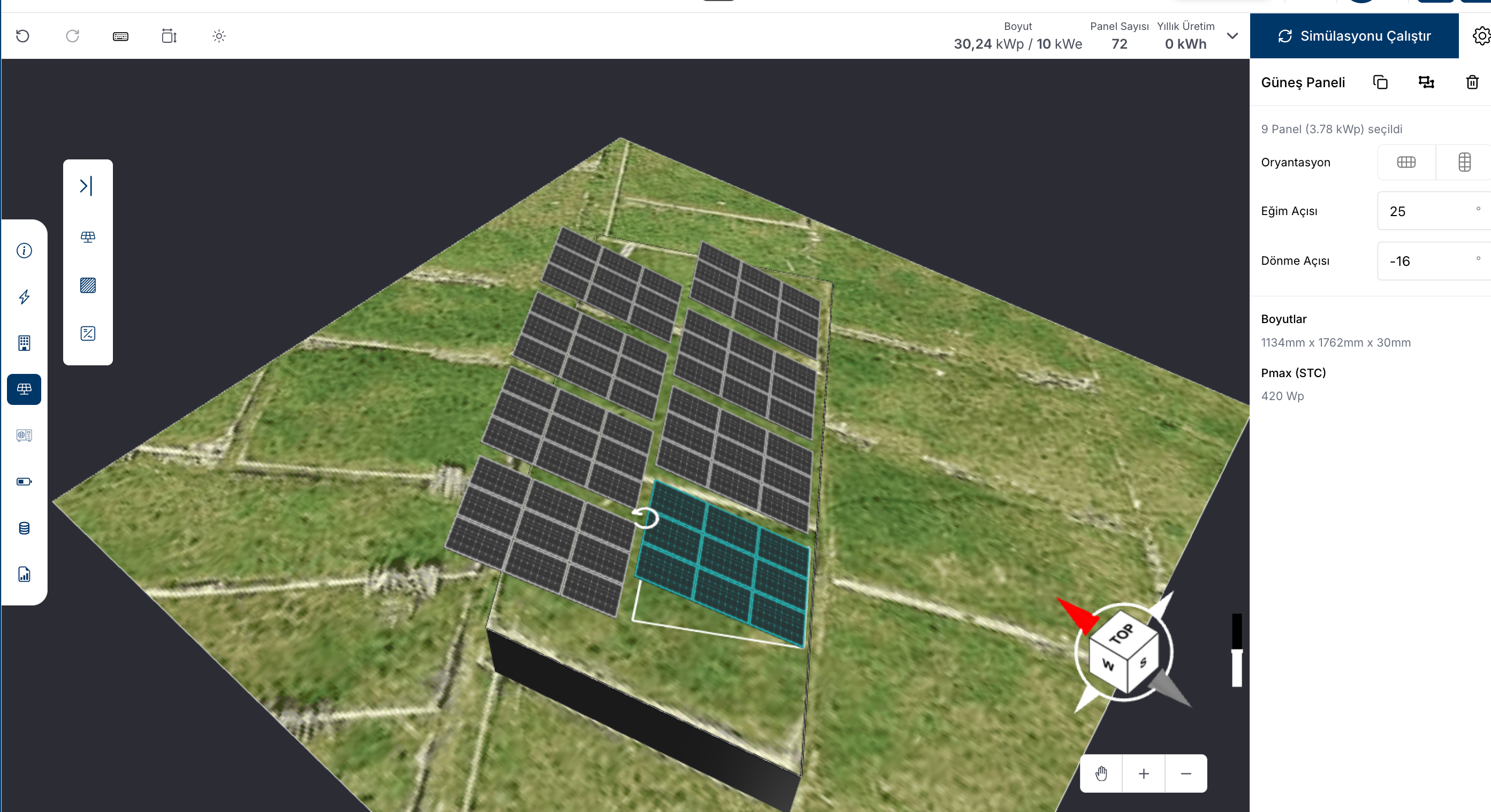
This is especially useful for agricultural projects, as it allows you to adjust the tilt and orientation of panels simultaneously.
* Arrange the panels into a bundled group in the solarVis account, as shown in the image below.
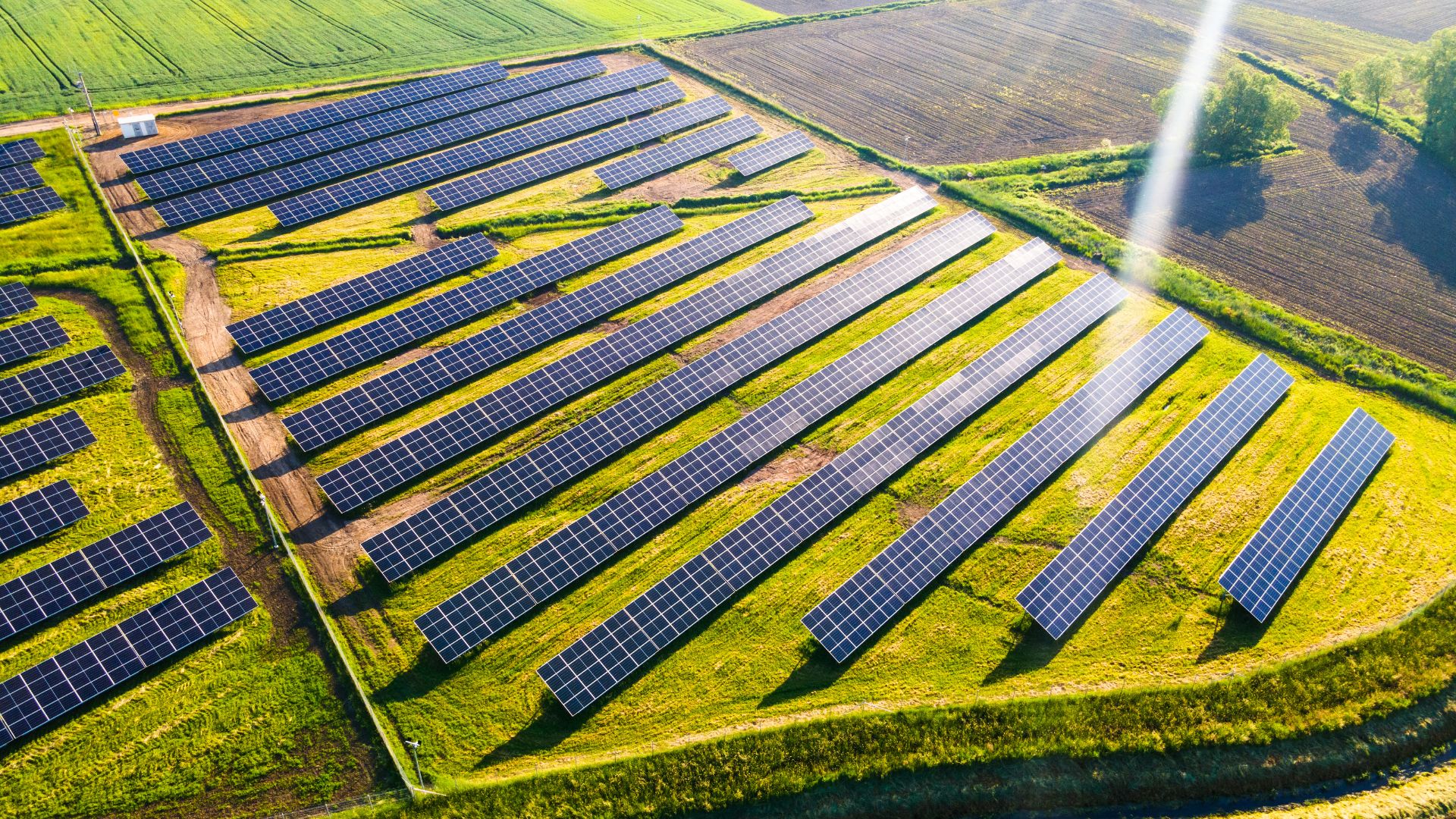
* Place the bundled panel groups across the agricultural area, following the design created in solarVis.
{% endhint %}
#### Duplicating Panel Groups
Bundled panel groups can be duplicated and reused across the roof.
* Copy an existing panel bundle
* Place it on another roof face or location
* Maintain the same layout and spacing
{% hint style="info" %}
This is especially useful for industrial and commercial roofs with repeating geometry.
{% endhint %}
#### Editing Panel Properties After Placement
Panel orientation and geometry settings can be modified even after placement.
The following properties can be updated for selected panels or panel groups:
* Orientation
* Tilt angle
* Rotation angle
Changes are applied instantly to the selected panels or bundles and reflected in production calculations.
### Panel Grouping
When panel grouping is enabled:
* Panels are placed as grouped frames rather than single units
* Horizontal and vertical panel counts per group can be defined
* Frame spacing can be customized independently
* Grouping rules apply to all modes
{% hint style="info" %}
Panel grouping is commonly used for:
* Large flat-roof installations
* Standardized mounting structures
{% endhint %}
## Layers
The **Layers** panel in the top toolbar controls what the scene draws. Hide whatever gets in the way of the part of the design you are working on, and show it again when you need it.
Each row is an eye toggle:
* **Panels**: The placed PV modules
* **Strings**: String cables, their routing, and the labels on them
* **Inverters**: Inverter units placed in the scene
* **Obstacles**: Chimneys, vents, and other roof obstacles
* **Setbacks**: The setback zones kept clear of panels
* **Trees**: Trees placed as shading objects
* **Map Image**: The satellite or map imagery under the model
* **Custom Images**: Uploaded roof plans, drone imagery, and site photos
* **Dimensions**: The dimension labels
Hiding a layer changes only what you see. The layout, stringing, shading results, and production calculations are unaffected.
{% hint style="info" %}
The **Layers** button stays highlighted while at least one layer is hidden, so you can tell at a glance that the scene is not showing everything.
{% endhint %}
## Shading Analysis & Solar Irradiance
When shading analysis is enabled, roof faces and panels are color-coded based on **annual average solar irradiance**.
* The analysis takes into account the sun array angle and shading effects from surrounding buildings, trees, and other obstacles on the roof
* Results are calculated on a yearly average basis
* Both the **roof-point** and **panel average** performance can be analyzed
### Visual Heatmap
Roof surfaces and panels are displayed using a color gradient:
* **Dark / Red tones**: Lower solar performance or higher shading impact
* **Orange tones**: Medium solar performance
* **Yellow tones**: High solar irradiance and optimal areas
This heatmap helps quickly identify suitable areas for panel placement.
{% hint style="info" %}
Panel colors may change based on their **angle and orientation**, as these directly affect the irradiance they receive.
{% endhint %}
### Inspector Popup Window
When moving the cursor over a roof face or panel, the **inspector popup window updates dynamically**.
* Values change instantly based on the cursor position
* Enables detailed, point-based analysis across the roof and panels
Displayed metrics include:
* **Irradiance** - Solar energy received per unit area, measured in **kWh/m²/yr**.
* **Solar Access (%)** - Percentage of irradiance reaching the roof after shading losses.
* **TOF (Tilt and Orientation Factor)** - How well the panel's tilt and orientation compare to the optimal angle.
* **TSRF (Total Solar Resource Fraction)** - Overall solar resource available, factoring in both shading and TOF.
Users can switch between:
* **Solar Access view**
Shows the percentage of annual sunlight per unit area on the roof can access.
* **Irradiance view**
Displays the total solar radiation (kWh/m²/year) received per unit area
#### Time-Based Analysis
The Inspector panel also provides a **monthly distribution chart**:
* Shows how irradiance or solar access changes throughout the year
* Helps understand seasonal production patterns
* Supports more accurate system evaluation before simulation
### MCS Shading Analysis (UK Projects)
For projects in the United Kingdom, the shading button in the toolbar opens a menu with two options: **solarVis Shading** and **MCS Shading**. Only one result can be shown at a time, and clicking the button while a result is visible hides it.
**MCS Shading** runs the MCS shade evaluation procedure (MGD-005): panels sharing the same orientation and tilt are grouped into arrays, and each array is assessed on the MCS 84-segment sunpath diagram. Every segment blocked by an obstruction, the modelled roof, obstacles, trees, or surroundings, reduces that array's output by 1%, giving a per-array shade factor.
The result opens the **MCS Shading Diagram** panel, which shows for each array:
* The sunpath diagram with the shaded segments marked
* A minimap highlighting which panels belong to the array
* The **Orientation**, **Inclination**, **Modules**, **Shaded segments**, and **Shade factor** values
If panels change after the analysis, the panel flags the result as outdated and offers **Re-run MCS shading analysis** to refresh it.
### Recalculation Warning
When there is any change in PV module placement, the system will display:
* **"Irradiance has changed and needs recalculation."**
This indicates that changes to panel placement or configuration have affected the irradiance results.
Users should re-run the simulation to ensure accurate performance outputs.
{% hint style="info" %}
This analysis allows users to compare different roof faces and panels and validate placement decisions with real performance data.
{% endhint %}
## Sun Path
The Sun Path view helps users understand how the sun moves around the project area at any time of day and across the year.
This view is used to visually evaluate solar exposure conditions on the roof and better understand how seasonal and hourly sun position affects the project.
* Displays the sun trajectory around the project model
* Shows the sun position for any selected date and time
* Casts realistic, moving shadows from roofs, obstacles, parapet walls, and panels
* Helps users visually interpret solar access before or during system design
* Supports a better understanding of shading behavior across different periods
{% hint style="info" %}
Sun Path is a visual analysis tool. It helps interpret solar exposure conditions, but final production and shading impacts should still be validated through system simulation and irradiance analysis.
{% endhint %}
### How It Works
The Sun Path tool creates a visual path around the project area and places the sun according to the selected date and time.
Users can:
* Pick any date and time with the calendar-based date and time picker
* Start or pause the sun animation with **Play** / **Pause**
{% hint style="info" %}
Pausing returns the sun to the date and time when playback started
{% endhint %}
* Adjust the playback **Speed** between 0.25× and 3×
* Choose what the animation advances: **Hour** moves the sun through the day, while **Month** moves the date across the seasons at a fixed time of day
As these values are updated, the sun moves smoothly through the 3D scene. All dates and times use the local time of the project location.
{% hint style="info" %}
This helps users check how solar exposure changes throughout the year and supports more informed panel placement decisions.
{% endhint %}
### Exporting a Sun Path Video
The Sun Path view can record a shareable video of how sunlight and shadows move across the design. This is especially useful for demonstrating shading behavior to customers and other stakeholders.
To record a video:
1\. Open the Sun Path view and position the camera the way the video should look
2\. In the **Video** section of the Sun Path panel, set the **Start** and **End** date and time
3\. Set the **Video length** from 3 to 60 seconds
4\. Choose the **Resolution** and **Quality**
{% hint style="info" %}
Set the size of the exported video: 1080p, 720p, Current
Set the quality of the exported video: **High**, **Medium**, or **Low**. Higher quality produces sharper videos with larger files.
{% endhint %}
**5. Show Date** on video
6\. Click **Record & download**
{% hint style="info" %}
The video captures only the 3D scene from the current camera angle; toolbars and side panels are never included in the recording.
{% endhint %}
{% hint style="info" %}
**Please note:**
* Videos are downloaded as MP4 files. In some browsers solarVis automatically records a WebM file instead; for best results, use a recent version of Chrome.
* The end date and time can never be earlier than the start; the calendar automatically blocks invalid ranges.
{% endhint %}
## Advanced Settings
Advanced Settings allow you to fine-tune how system performance and production are calculated.
These settings affect simulation accuracy, loss assumptions, and data sources used in energy calculations.
Advanced Settings are divided into two sections:
* **Loss Calculations**
* **System Preferences**
You can access this panel from the PV design screen at any time. Changes apply to the current design version only.
{% hint style="info" %}
Advanced Settings are optional. If not modified, solarVis uses default industry standard values.
{% endhint %}
### Loss Calculations
Loss Calculations define system-level losses that reduce theoretical production to realistic output values.
Each parameter is expressed as a percentage and applied during simulation.
**Available Loss Parameters**
* **Shading:** Losses from partial or indirect shading
* **Soiling:** Losses caused by dirt or dust on panels
* **Snow:** Losses due to snow covering panels
* **Environmental conditions:** Losses from humidity or wind
* **Light-induced degradation:** Initial performance loss after a certain time of installation
* **DC connections:** Losses at DC connection points, like connectors
* **DC wiring:** Losses caused by the strength in cables connecting panels to the inverter or other components
* **AC wiring:** Energy losses in AC wiring from the inverter to the grid
These values directly impact annual energy production and financial outputs.
#### Reset to Default
Resets all loss parameters to solarVis default values.
### System Preferences
System Preferences define the data sources and assumptions used for production simulation.
These settings control **how solar resource data and weather information are selected** for calculations.
**Available System Preferences**
* **Weather Data Source**: PVGIS or PVWatts
* **Simulation Year**: TMY (Typical Meteorological Year) or a specific year between 2005 and 2023
{% hint style="info" %}
By default, solarVis uses PVGIS-based datasets.
{% endhint %}
For projects in the United Kingdom, two additional preferences appear at the top of the section:
* **Shading Standard**: Choose **solarVis** or **MCS** for shading calculations. The MCS option enables the MCS Shading Analysis described in the Shading Analysis section on this page.
* **Production Standard**: Choose **solarVis** or **MCS** for production calculations. MCS shading requires MCS production, because the MCS method produces per-array shade factors instead of hourly radiation.
With the MCS production standard, the annual output of each array is derived from the MCS certified lookup tables (MGD-003)
{% hint style="info" %}
MCS is the default standard for eligible UK projects. MCS calculations apply to systems under 50 kWp; larger designs and projects outside the UK use the solarVis calculation.
{% endhint %}
Changes to system preferences immediately affect simulation results.
#### Production Probability
The Production Probability section estimates the reliability and variability of the system’s production using a probabilistic (P50/P90) model.
* Turn on **Enable Probability Distribution** to calculate probability-based production values
* Under **Probability Values**, choose which levels to display: **P90**, **P95**, **P99** (P50 is always included)
* **Weather Variability** is calculated automatically from PVGIS multi-year irradiation data and shown as **Annual Variability**
* **System Variability** inputs can be adjusted as percentages: **PV Module Modeling Parameters**, **Inverter Efficiency**, **Soiling Mismatch**, **Degradation Estimation**, and **Custom Variability**
* The **Resulting Weather & System Variability** row shows the combined total used for the distribution
{% hint style="info" %}
**Please note:**
* Probability distribution is only available when the weather data source is **PVGIS** with **TMY** data.
* Enabling it does not change the quoted production numbers; the proposal still reports the P50 production. The distribution and the performance ratio appear on the proposal’s Production Analysis page, configured in [Offer Settings](/configuration/settings-page/offer-settings.md#production-analysis-page).
{% endhint %}
## Setback Configuration
Setback rules define restricted areas near roof edges where panels cannot be placed.
* Prevents panel placement close to the roof boundaries
* Applied consistently across all placement modes
* Helps ensure installation safety and regulatory compliance
{% hint style="info" %}
Setbacks help ensure:
* Installation safety
* Maintenance access
* Compliance with local regulations and fire codes
{% endhint %}
## Inverter Selection
After panel placement, an inverter should be selected to complete the system design.
### Manual Inverter Selection
* Inverters can be selected directly from the database
* Full control over inverter brand, model, and specifications
* Suitable for custom or advanced system designs
### Auto Suggest System
The system can automatically suggest inverter configurations based on production analysis.
* Analyzes installed project DC capacity and production behavior
* Suggests optimized inverter configurations
* Provides alternative inverter systems
* Users can select one of the suggested options or override them manually
This feature helps ensure proper sizing and system efficiency.
### Inverter Limiting
* Inverter output power can be limited manually
* Useful for grid constraints or design optimization
{% hint style="info" %}
🧷 For supporting battery integration;
* **On-Grid projects:** Hybrid inverters can be used.
* **Off-Grid projects:** Off-grid or hybrid inverters can be used.
* **Zero Injection projects:** Off-grid or hybrid inverters can be used.
Please note:
* You can use an on-grid inverter in an on-grid or a zero injection project; however, in this case, battery integration is not supported.
{% endhint %}
## Downloads
After completing the PV design, you can export the current layout and simulation data from the **Downloads** menu on the page.
This allows you to take both the technical solar design and system performance results into external tools for further use, including CAD workflows and detailed analysis.
Available export options:
* Export DXF
* Download Hourly Simulation
* Shade Report
* MCS Structural Report (UK projects)
* Sun-path video
### Export DXF
This export makes it possible to take the technical solar design into external CAD software for review, coordination, and installation planning.
{% hint style="info" %}
The exported DXF file is compatible with common CAD tools such as AutoCAD, DraftSight, and similar software.
{% endhint %}
To export a DXF file:
* Open the **Downloads** menu
* Click **Export DXF**
* Review the drawing in the **CAD Viewer**
* Optionally add measurements or adjust the view
* Click **Download DXF**
{% embed url="" %}
#### What Gets Exported
The DXF file includes the current PV design and is organized into separate layers so each drawing element can be reviewed independently.
Available layers include:
* **ROOF\_LAYOUT**: Roof edges, vertices, and roof face information (White)
* **PANELS**: PV module positions with tilt & rotation (Cyan)
* **STRINGS**: Electrical wiring paths between panels (Magenta)
* **STRING\_NODES**: Panel center markers and string labels (Magenta)
* **INVERTERS**: Inverter locations with AC/DC symbols (Blue)
* **SETBACKS**: Restricted offset areas from roof edges (Orange)
* **OBSTACLES**: Roof obstructions such as chimneys or HVAC units (Red)
* **DORMERS**: Roof protrusions (Green)
* **ELEVATIONS**: Height labels in metric or imperial units
#### CAD Viewer
Before downloading the DXF file, solarVis opens a built-in CAD Viewer where the drawing can be reviewed and annotated.
This allows users to inspect the exported design and optionally add dimensions before downloading the final file.
#### Available Viewer Tools
The CAD Viewer includes the following tools:
* **Length tool** for measuring distances between two points
* **Snap system** for accurate measurement placement using endpoint, midpoint, and perpendicular snapping
* **Layer visibility** toggle layers on/off
* **Unit toggle** for switching between metric (m) and imperial (ft)
* **Undo / Redo / Clear all** controls for managing annotations
* **Zoom and pan** scroll to zoom, right-click drag to pan
* **Monochrome mode** for simplified single color viewing
Any measurements added in the CAD Viewer are included in the downloaded DXF file.
#### Export Details
The DXF export reflects the current technical design as configured in the project.
* Panels are exported in flattened 3D with tilt and rotation written on the top left of the panel if it is non-zero
* Strings follow actual routed paths between panel centers, with circle markers and labels
* Inverters are shown with AC and DC symbols
* Setbacks are shown with outline and hatched fill
* Elevation labels are converted automatically based on the selected unit system
* File names are automatically transliterated for cross-platform compatibility
{% hint style="info" %}
The DXF export is useful for field review, electrical engineering checks, installation planning, and sharing technical layouts with external stakeholders.
{% endhint %}
### Download Hourly Simulation
The Download Hourly Simulation option allows you to export detailed system performance data as an XLSX file.
This export provides hour-by-hour production results based on the current system design and simulation settings.
To download the hourly simulation file:
* Open the **Downloads** menu
* Click **Download Hourly Simulation**
#### What Gets Exported
The XLSX file includes detailed time-series simulation data at an hourly resolution, based on the current system design and configuration.
Each row represents a specific timestamp and provides both production and system behavior metrics.
Typical data includes:
* Timestamp data for each simulation hour
* Hourly consumption values
* Hourly production values at the system level
* Energy imported from the grid and energy exported to the grid
* Battery Charging Power, Battery State of Charge, and Battery Loss values if a battery is applicable
* Base Consumption, Heat Pump Consumption, and Total Consumption values if a heat pump is applicable
The dataset reflects how the designed system performs across different hours of the year, capturing variations caused by sun position, shading conditions, and system configuration.
This file can be used for:
* Detailed performance analysis at the hourly level
* Validation of system design assumptions
* Financial modeling based on realistic production curves
* Consumption and production matching analysis
* Battery & Heat Pump and self-consumption optimization studies
{% hint style="info" %}
The export features are useful for engineering validation, installation planning, and sharing both technical layouts and performance data with external stakeholders.
{% endhint %}
### Shade Report
The **Shade Report** option downloads a PDF that documents the shading performance of the current panel layout. It is a clear way to show customers and stakeholders how much sunlight each panel array receives.
To download the shade report:
* Open the **Downloads** menu
* Click **Shade Report**
The report is generated on the server for the current layout. A progress notification tracks the build, and the PDF downloads automatically when it is ready.
#### What Gets Exported
* An **Annual Solar Access** view of the design, with panels colored by their shading results
* A per-array summary table with panel count, azimuth, pitch, and annual **Solar Access**, **TOF**, and **TSRF** values, including a weighted average across all arrays
* A **Monthly Solar Access (%)** breakdown for each array
* Definitions of the reported metrics
{% hint style="info" %}
The shade report needs shading data and placed panels: run the shading analysis first and place at least one panel. If the layout changed after the last analysis, re-run the shading analysis to refresh the report.
{% endhint %}
{% hint style="info" %}
The shade report can also be added to the customer proposal as its own page, configured in [Offer Settings](/configuration/settings-page/offer-settings.md).
{% endhint %}
### MCS Structural Report
Available for United Kingdom projects only (same condition as MCS shading analysis). SolarVis runs the **MIS 3002 and BRE DG 489** structural checks for weight, snow, and wind loading, producing a report that can be handed to the customer.
#### Report structure
Generated per roof face, a design spread across several roofs produces one calculation set per roof. Each roof gets a Structural Calculations sheet, headed with roof form, construction, pitch, module count, array area, and date.
#### Report content (4 sections)
* **Weight Loading**: array and mounting weight, distributed load over the array area, roof covering, retrofit increase against the existing covering, and total dead load vs. permitted dead load
* **Snow Loading**: snow zone, ground snow load at site altitude, roof shape coefficient for the pitch, resulting roof snow load, and combined array-plus-snow load vs. permitted imposed load
* **Wind Loading**: wind zone, peak velocity pressure by zone/height/terrain/sea distance, altitude and hill-slope factors, per-roof-zone uplift and pressure figures resolved to a per-hook design load vs. declared hook capacity
* **Fixing Details**: screw withdrawal check, load per screw, hook spacing check, module and rail-clamp rating checks, and the mounting system being installed
### Sun Path Video
The **Sun-path video** option opens the Sun Path panel with the video controls, where you can record a downloadable video of sunlight and shadows moving across the design.
Setting the date range, video length, resolution, and quality is described in the Exporting a Sun Path Video section on this page.
## System Simulation
After completing panel placement, inverter selection, and shading analysis, click **Simulate System**.
Simulation results include:
* Installed system capacity (kWp)
* Total panel count
* Estimated annual energy production (kWh)
* Impact of orientation, shading, and inverter configuration
Detailed outputs can be reviewed via **Simulation Result Graphs**.
## Keyboard Shortcuts
#### Canvas Navigation
* **Mouse Wheel Up**: Zoom in
* **Mouse Wheel Down**: Zoom out
#### Design Tools
* **Esc**: Edit mode
* **C**: Create mode
* **Ctrl (hold)**: Multiselect mode
#### Actions
* **Ctrl + Z**: Undo
* **Ctrl + Shift + Z**: Redo
***
## Related Pages
* [Roof Drawing Page](/project-design/create-a-project/roof-drawing.md)
* [String Page](/project-design/create-a-project/panel-placement-and-inverter-selection/string.md)
Still stuck? You can always [**get in touch with us!**](https://www.solarvis.co/en/company/contact)
---
# Agent Instructions
This documentation is published with GitBook. GitBook is the documentation platform designed so that both humans and AI agents can read, navigate, and reason over technical content effectively. Learn more at gitbook.com.
## Querying This Documentation
If you need additional information that is not directly available in this page, you can query the documentation dynamically by asking a question.
Perform an HTTP GET request on the current page URL with the `ask` query parameter, and the optional `goal` query parameter:
```
GET https://docs.solarvis.co/project-design/create-a-project/panel-placement-and-inverter-selection.md?ask=&goal=
```
`ask` is the immediate question: it should be specific, self-contained, and written in natural language.
`goal` is optional and describes the broader end goal you are ultimately trying to accomplish on behalf of the user. GitBook uses it to tailor the answer towards what is most useful for that goal.
The response will contain a direct answer to the question and relevant excerpts and sources from the documentation.
Use this mechanism when the answer is not explicitly present in the current page, you need clarification or additional context, or you want to retrieve related documentation sections.
 * Place the bundled panel groups across the agricultural area, following the design created in solarVis.
 {% endhint %}
#### Duplicating Panel Groups
Bundled panel groups can be duplicated and reused across the roof.
* Copy an existing panel bundle
* Place it on another roof face or location
* Maintain the same layout and spacing
{% hint style="info" %}
This is especially useful for industrial and commercial roofs with repeating geometry.
{% endhint %}
#### Editing Panel Properties After Placement
Panel orientation and geometry settings can be modified even after placement.
The following properties can be updated for selected panels or panel groups:
* Orientation
* Tilt angle
* Rotation angle
Changes are applied instantly to the selected panels or bundles and reflected in production calculations.
### Panel Grouping
When panel grouping is enabled:
* Panels are placed as grouped frames rather than single units
* Horizontal and vertical panel counts per group can be defined
* Frame spacing can be customized independently
* Grouping rules apply to all modes
{% hint style="info" %}
Panel grouping is commonly used for:
* Large flat-roof installations
* Standardized mounting structures
{% endhint %}
## Layers
The **Layers** panel in the top toolbar controls what the scene draws. Hide whatever gets in the way of the part of the design you are working on, and show it again when you need it.
Each row is an eye toggle:
* **Panels**: The placed PV modules
* **Strings**: String cables, their routing, and the labels on them
* **Inverters**: Inverter units placed in the scene
* **Obstacles**: Chimneys, vents, and other roof obstacles
* **Setbacks**: The setback zones kept clear of panels
* **Trees**: Trees placed as shading objects
* **Map Image**: The satellite or map imagery under the model
* **Custom Images**: Uploaded roof plans, drone imagery, and site photos
* **Dimensions**: The dimension labels
Hiding a layer changes only what you see. The layout, stringing, shading results, and production calculations are unaffected.
{% hint style="info" %}
The **Layers** button stays highlighted while at least one layer is hidden, so you can tell at a glance that the scene is not showing everything.
{% endhint %}
## Shading Analysis & Solar Irradiance
When shading analysis is enabled, roof faces and panels are color-coded based on **annual average solar irradiance**.
* The analysis takes into account the sun array angle and shading effects from surrounding buildings, trees, and other obstacles on the roof
* Results are calculated on a yearly average basis
* Both the **roof-point** and **panel average** performance can be analyzed
### Visual Heatmap
Roof surfaces and panels are displayed using a color gradient:
* **Dark / Red tones**: Lower solar performance or higher shading impact
* **Orange tones**: Medium solar performance
* **Yellow tones**: High solar irradiance and optimal areas
This heatmap helps quickly identify suitable areas for panel placement.
{% hint style="info" %}
Panel colors may change based on their **angle and orientation**, as these directly affect the irradiance they receive.
{% endhint %}
### Inspector Popup Window
When moving the cursor over a roof face or panel, the **inspector popup window updates dynamically**.
* Values change instantly based on the cursor position
* Enables detailed, point-based analysis across the roof and panels
Displayed metrics include:
* **Irradiance** - Solar energy received per unit area, measured in **kWh/m²/yr**.
* **Solar Access (%)** - Percentage of irradiance reaching the roof after shading losses.
* **TOF (Tilt and Orientation Factor)** - How well the panel's tilt and orientation compare to the optimal angle.
* **TSRF (Total Solar Resource Fraction)** - Overall solar resource available, factoring in both shading and TOF.
Users can switch between:
* **Solar Access view**
Shows the percentage of annual sunlight per unit area on the roof can access.
{% endhint %}
#### Duplicating Panel Groups
Bundled panel groups can be duplicated and reused across the roof.
* Copy an existing panel bundle
* Place it on another roof face or location
* Maintain the same layout and spacing
{% hint style="info" %}
This is especially useful for industrial and commercial roofs with repeating geometry.
{% endhint %}
#### Editing Panel Properties After Placement
Panel orientation and geometry settings can be modified even after placement.
The following properties can be updated for selected panels or panel groups:
* Orientation
* Tilt angle
* Rotation angle
Changes are applied instantly to the selected panels or bundles and reflected in production calculations.
### Panel Grouping
When panel grouping is enabled:
* Panels are placed as grouped frames rather than single units
* Horizontal and vertical panel counts per group can be defined
* Frame spacing can be customized independently
* Grouping rules apply to all modes
{% hint style="info" %}
Panel grouping is commonly used for:
* Large flat-roof installations
* Standardized mounting structures
{% endhint %}
## Layers
The **Layers** panel in the top toolbar controls what the scene draws. Hide whatever gets in the way of the part of the design you are working on, and show it again when you need it.
Each row is an eye toggle:
* **Panels**: The placed PV modules
* **Strings**: String cables, their routing, and the labels on them
* **Inverters**: Inverter units placed in the scene
* **Obstacles**: Chimneys, vents, and other roof obstacles
* **Setbacks**: The setback zones kept clear of panels
* **Trees**: Trees placed as shading objects
* **Map Image**: The satellite or map imagery under the model
* **Custom Images**: Uploaded roof plans, drone imagery, and site photos
* **Dimensions**: The dimension labels
Hiding a layer changes only what you see. The layout, stringing, shading results, and production calculations are unaffected.
{% hint style="info" %}
The **Layers** button stays highlighted while at least one layer is hidden, so you can tell at a glance that the scene is not showing everything.
{% endhint %}
## Shading Analysis & Solar Irradiance
When shading analysis is enabled, roof faces and panels are color-coded based on **annual average solar irradiance**.
* The analysis takes into account the sun array angle and shading effects from surrounding buildings, trees, and other obstacles on the roof
* Results are calculated on a yearly average basis
* Both the **roof-point** and **panel average** performance can be analyzed
### Visual Heatmap
Roof surfaces and panels are displayed using a color gradient:
* **Dark / Red tones**: Lower solar performance or higher shading impact
* **Orange tones**: Medium solar performance
* **Yellow tones**: High solar irradiance and optimal areas
This heatmap helps quickly identify suitable areas for panel placement.
{% hint style="info" %}
Panel colors may change based on their **angle and orientation**, as these directly affect the irradiance they receive.
{% endhint %}
### Inspector Popup Window
When moving the cursor over a roof face or panel, the **inspector popup window updates dynamically**.
* Values change instantly based on the cursor position
* Enables detailed, point-based analysis across the roof and panels
Displayed metrics include:
* **Irradiance** - Solar energy received per unit area, measured in **kWh/m²/yr**.
* **Solar Access (%)** - Percentage of irradiance reaching the roof after shading losses.
* **TOF (Tilt and Orientation Factor)** - How well the panel's tilt and orientation compare to the optimal angle.
* **TSRF (Total Solar Resource Fraction)** - Overall solar resource available, factoring in both shading and TOF.
Users can switch between:
* **Solar Access view**
Shows the percentage of annual sunlight per unit area on the roof can access.

